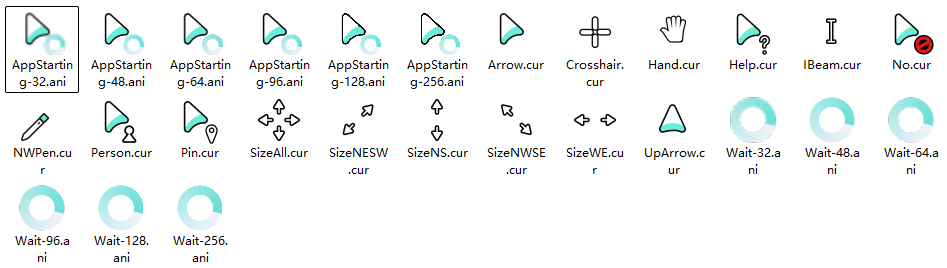
2. Pointer image to make a pointer file
Basic description
Pointer files are divided into two types
The static cursor file has a. cur file extension and consists of multiple PNG images of different sizes. Similar to the Windows icon file ICO file.
The dynamic cursor file extension is. ani file and can only contain multiple PNG files of one size to form an animation. Similar to GIF dynamic image files.
Creating software
There are various software for creating cursor files, including the ones we are familiar with, but we strongly recommend using Axialis CursorWorkshop!
Visual Studio
Axialis CursorWorkshop
ArtCursors
Multi size and single size
For better sharing and user experience, we strongly recommend that you create multi size pointers when making pointers!
However, for single sizes, we also welcome you to upload and share!
Specific size related instructions: Please check this link
Create a static cursor file from an image (in multiple sizes)
Drag and drop the pointer image file to the production software
Axialis CursorWorkshop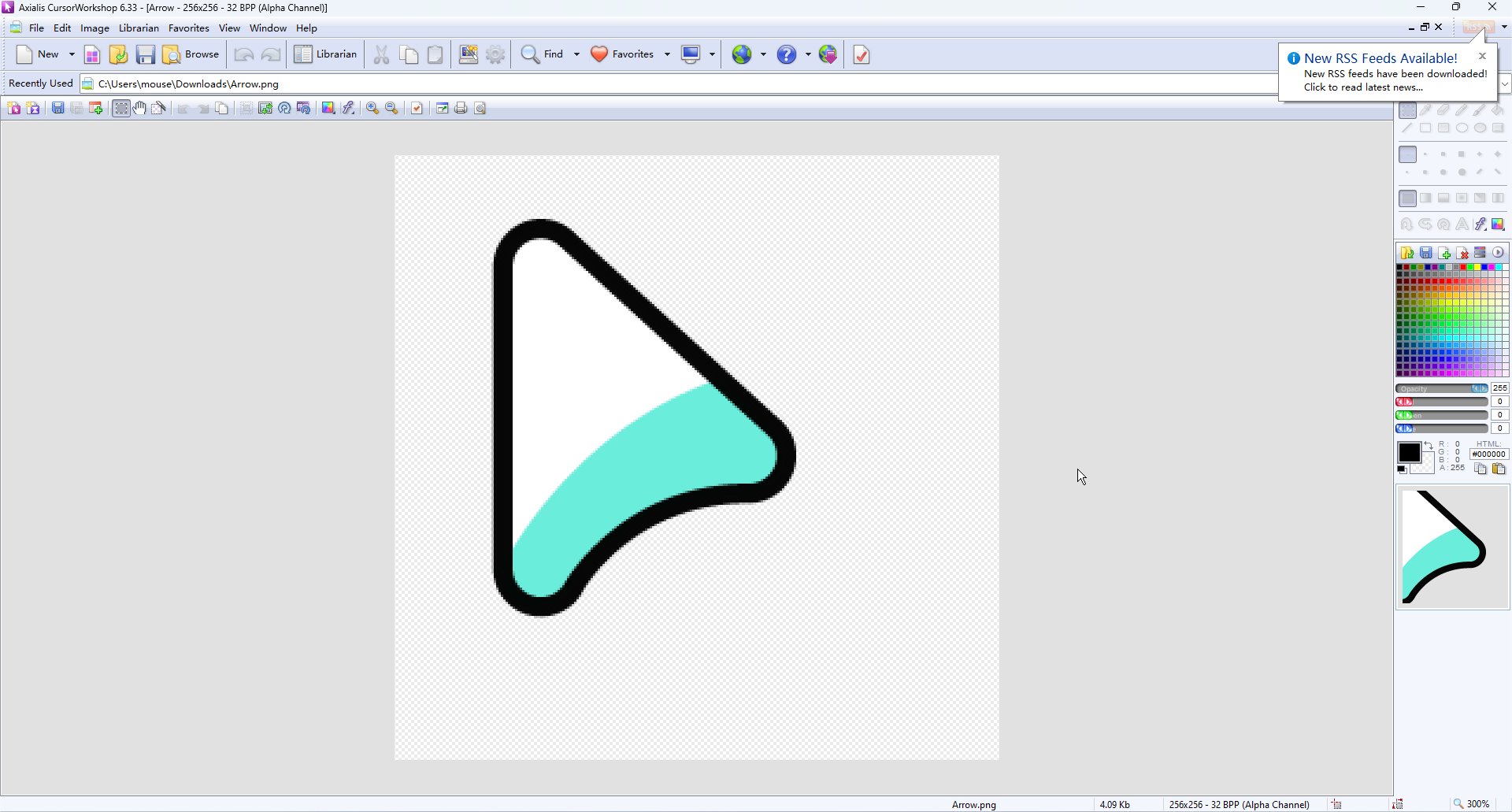
Click the
Create Static cursor from Imagebutton to start creating a static cursor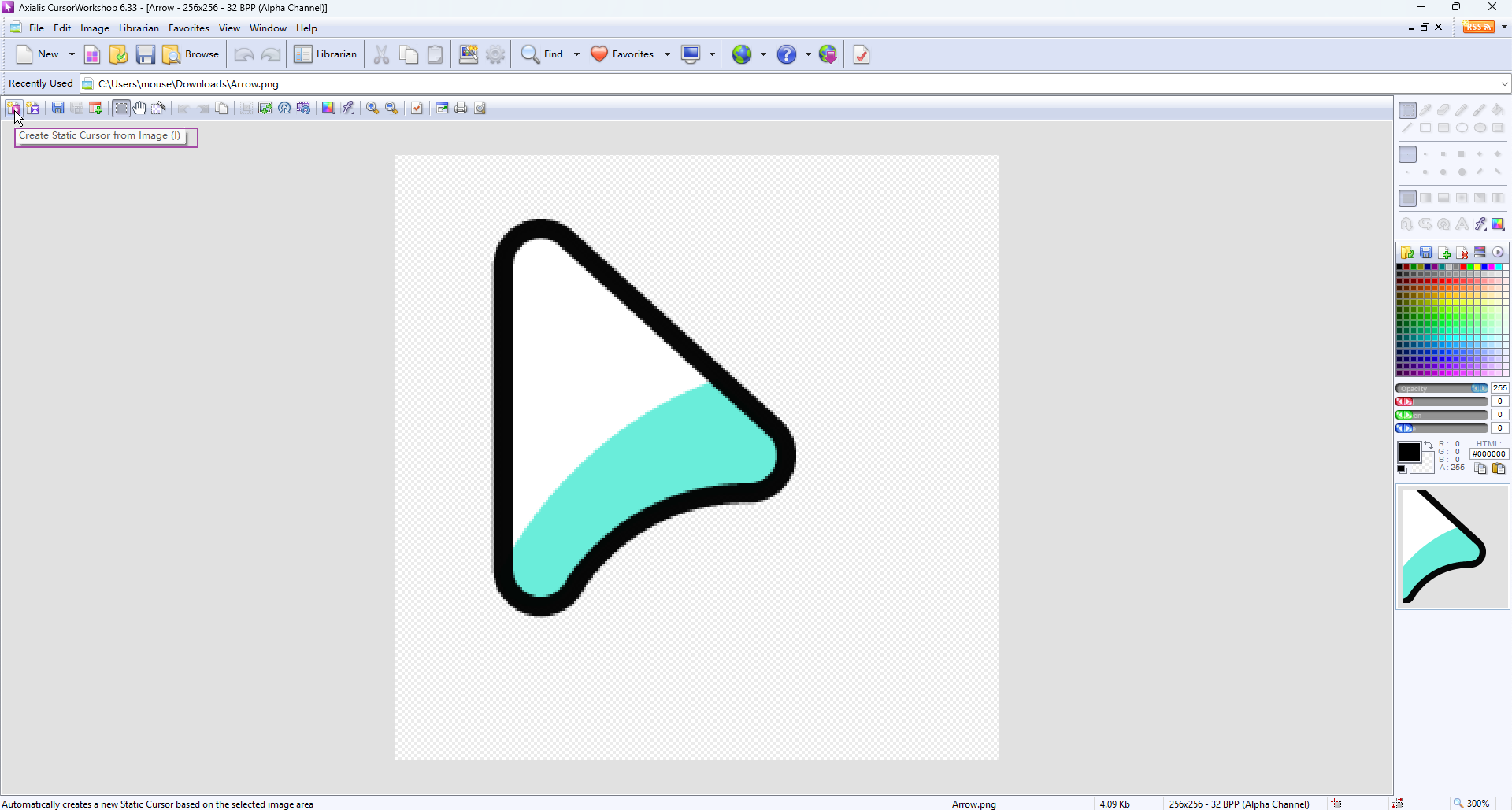
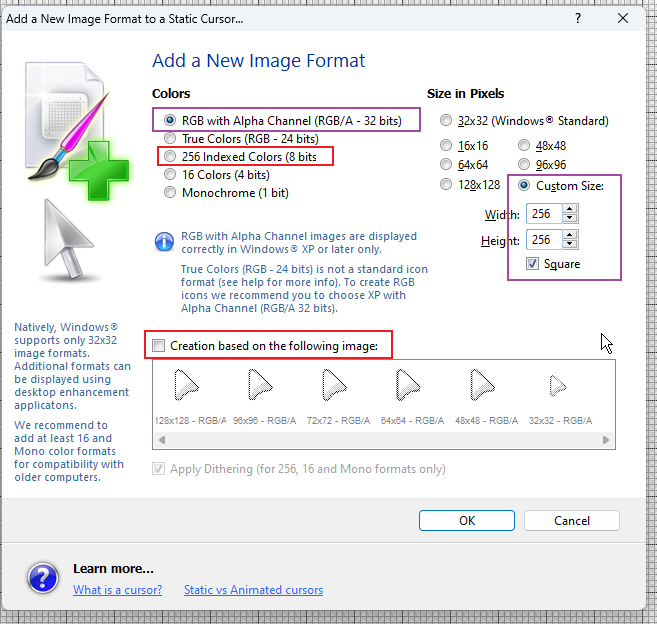
Choose a size (we recommend making a multi size cursor to better adapt to different pointer sizes selected by users)
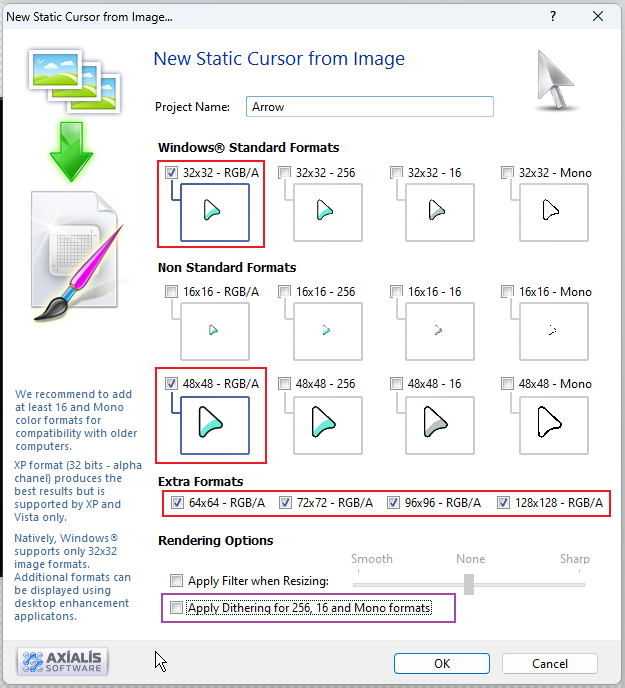
⚠️: For better production results - please be sure to choose the
RGBA/AformatSpecific size related instructions: Please check this link
Add
256pxsize image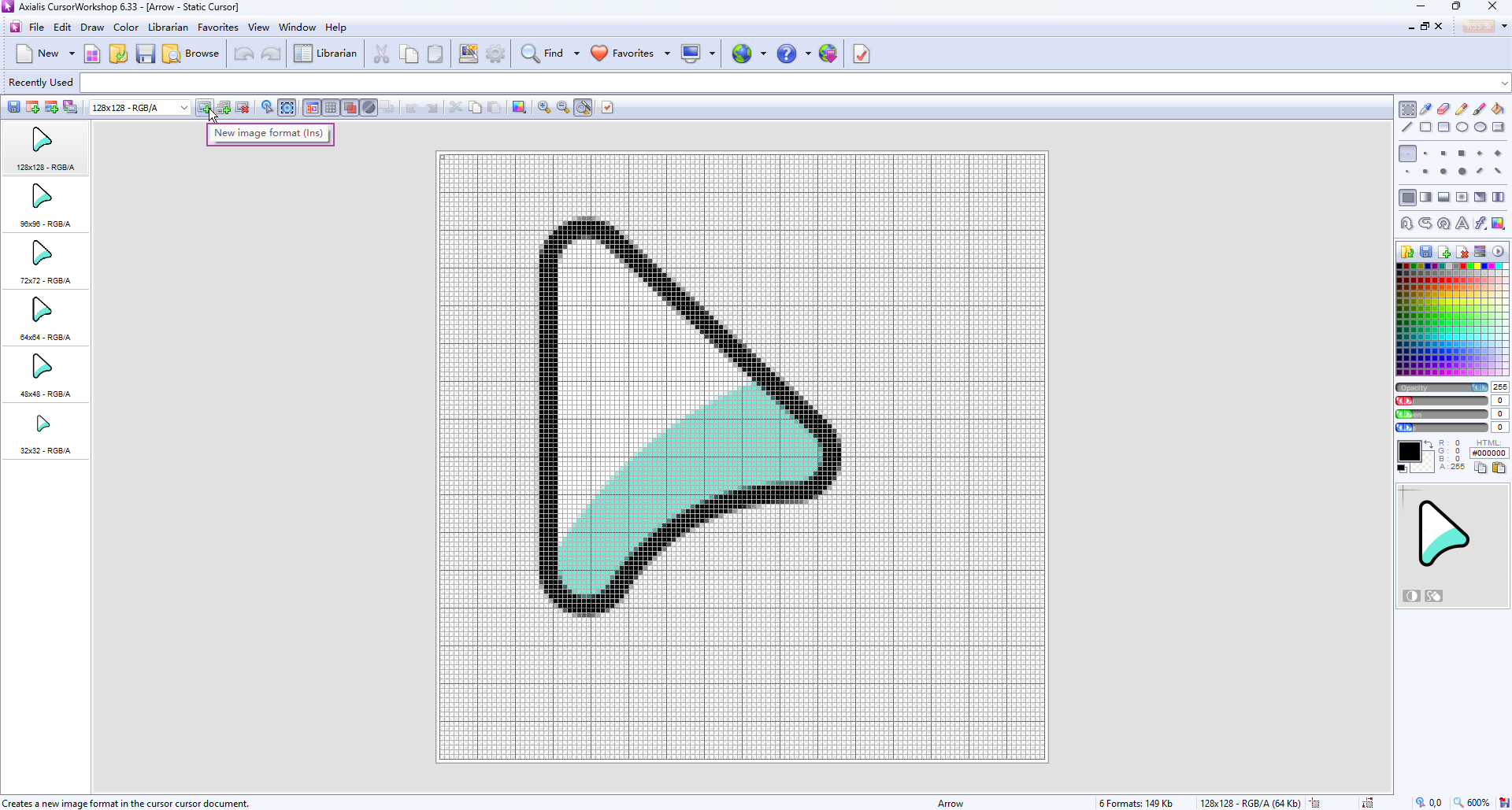
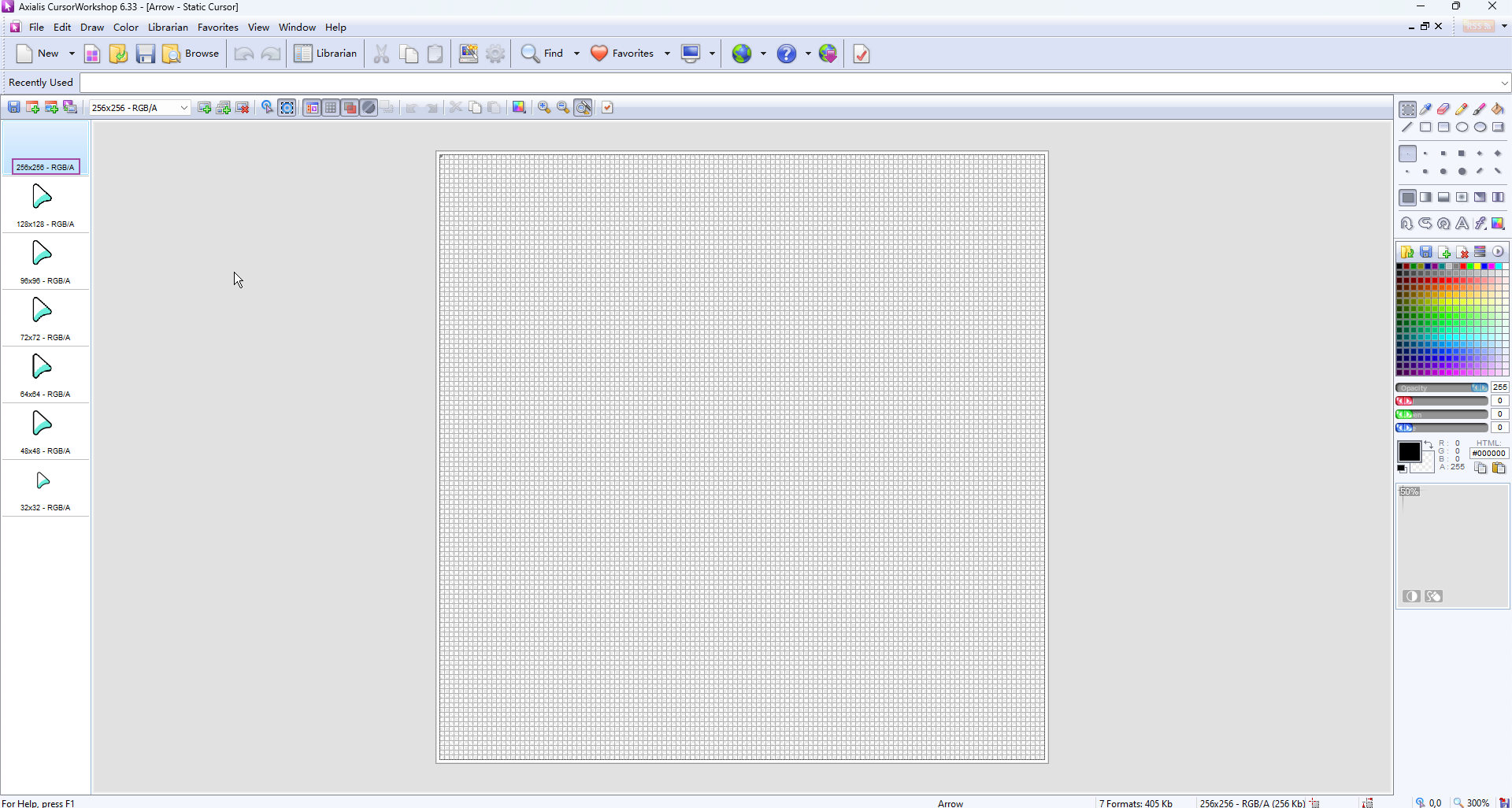
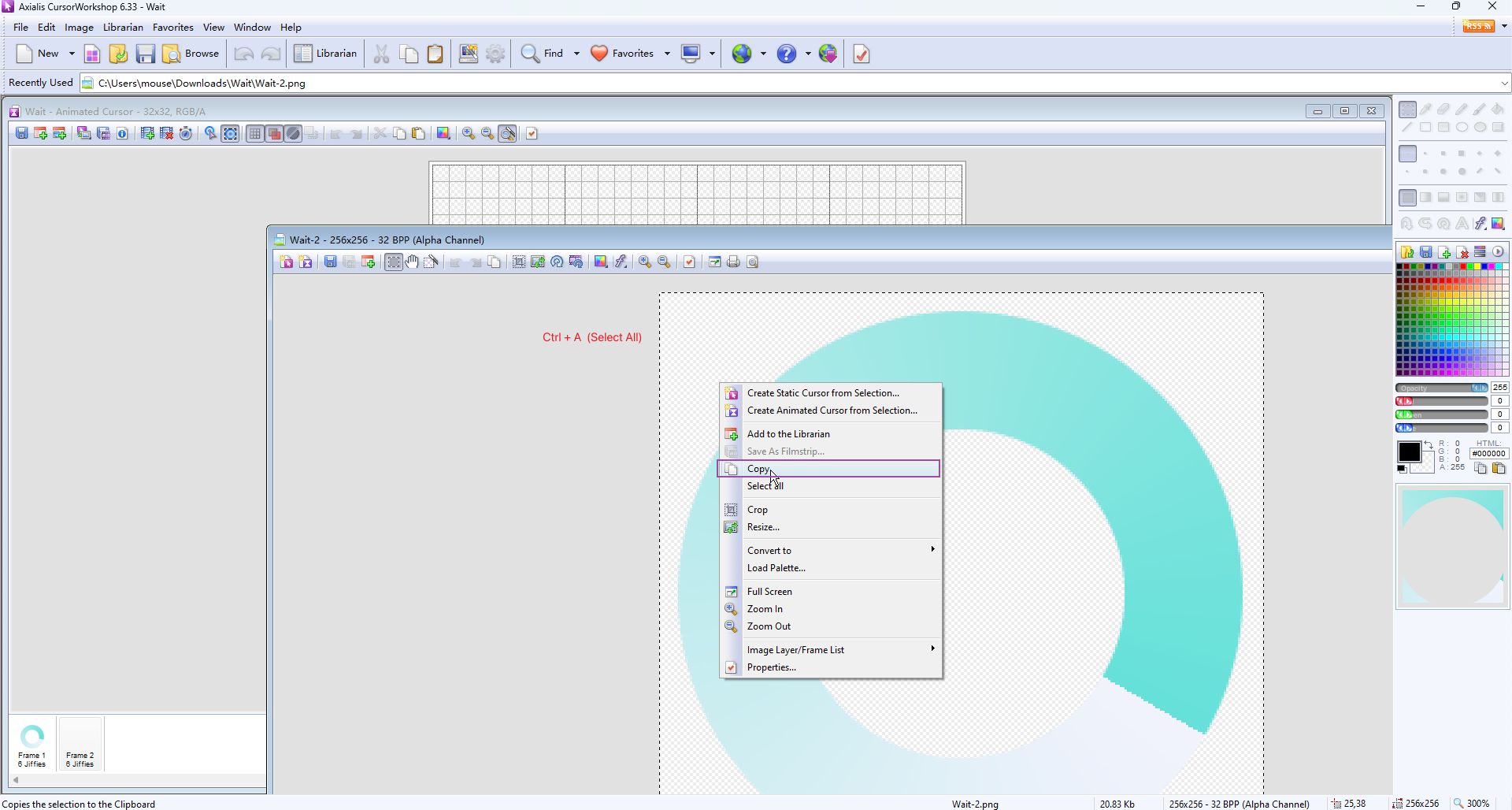
At this point, the 256 size image is still vacant
Axialis CursorWorkshopis a multi window software that allows you to find the 256 size image you just opened (or drag and drop the 256 size image back into the software)
Select All and Copy
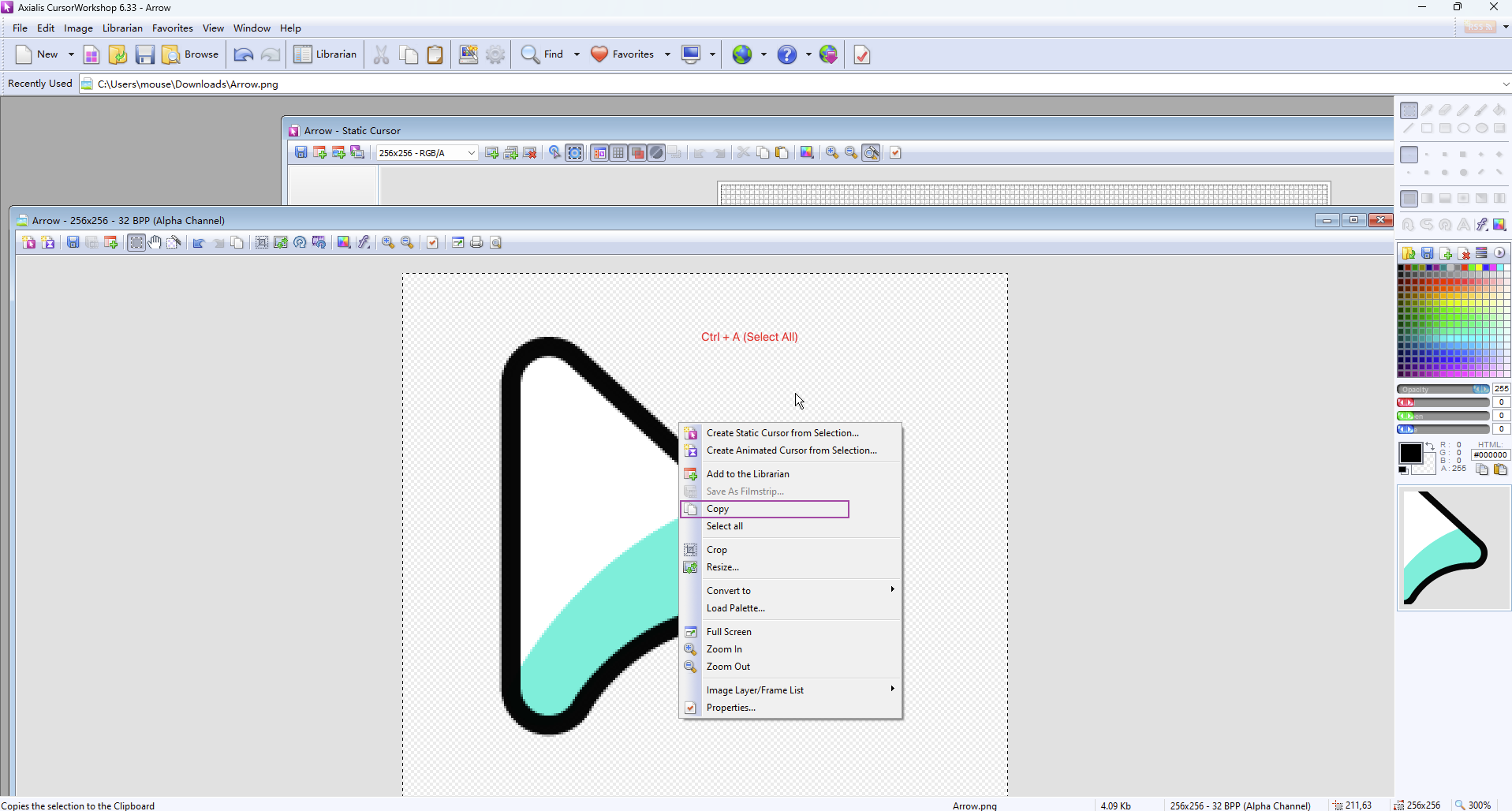
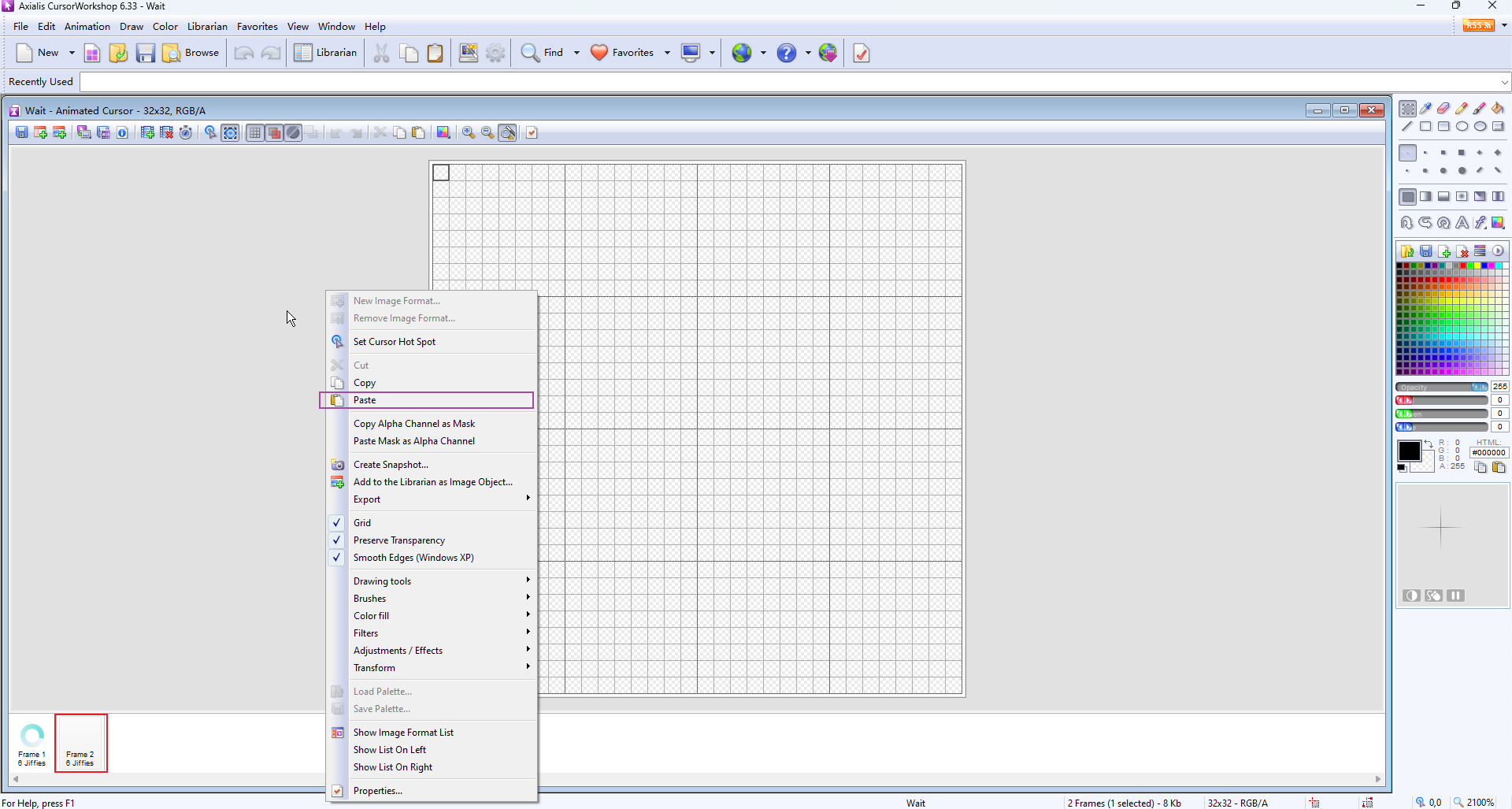
Paste
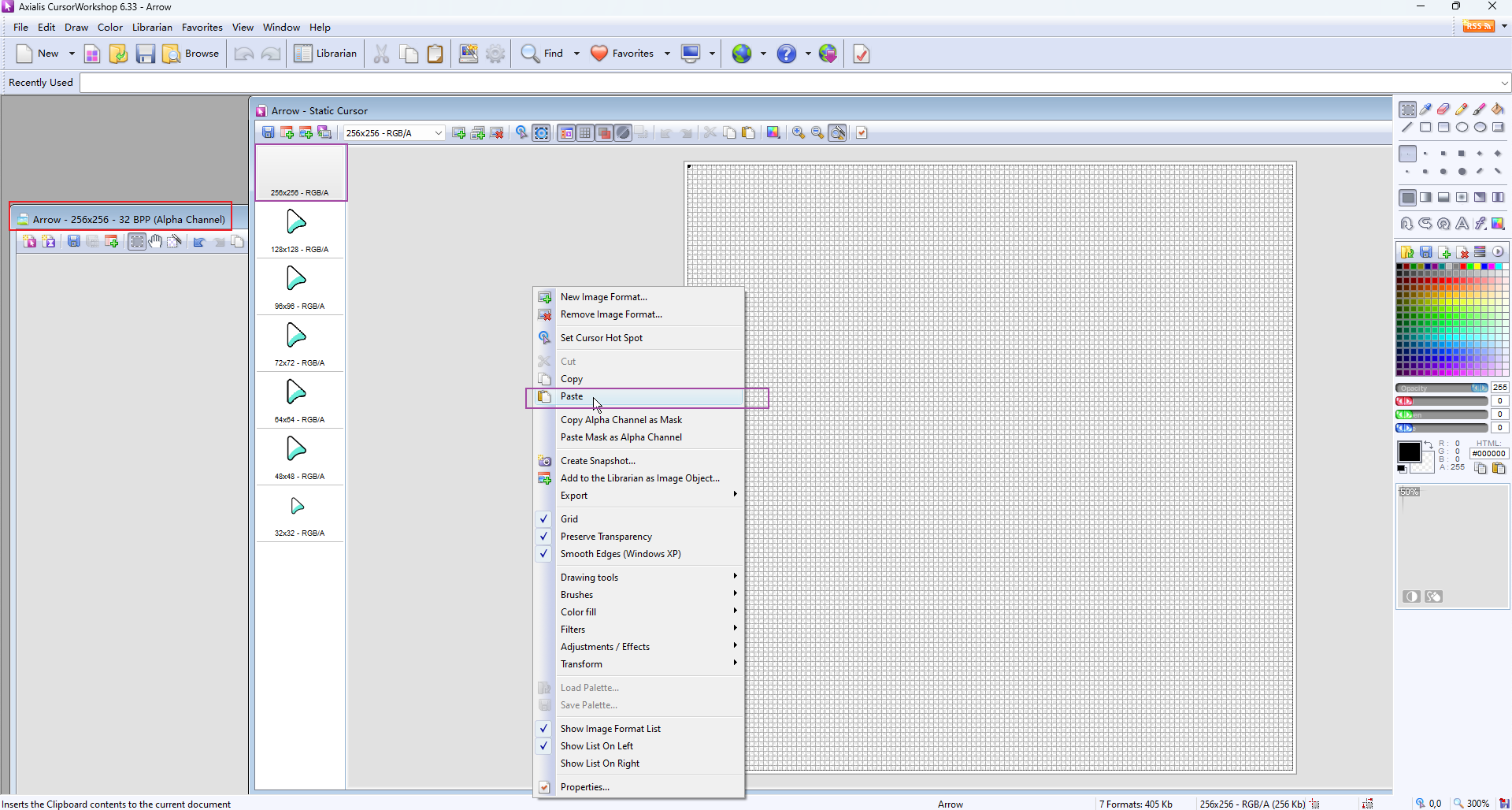
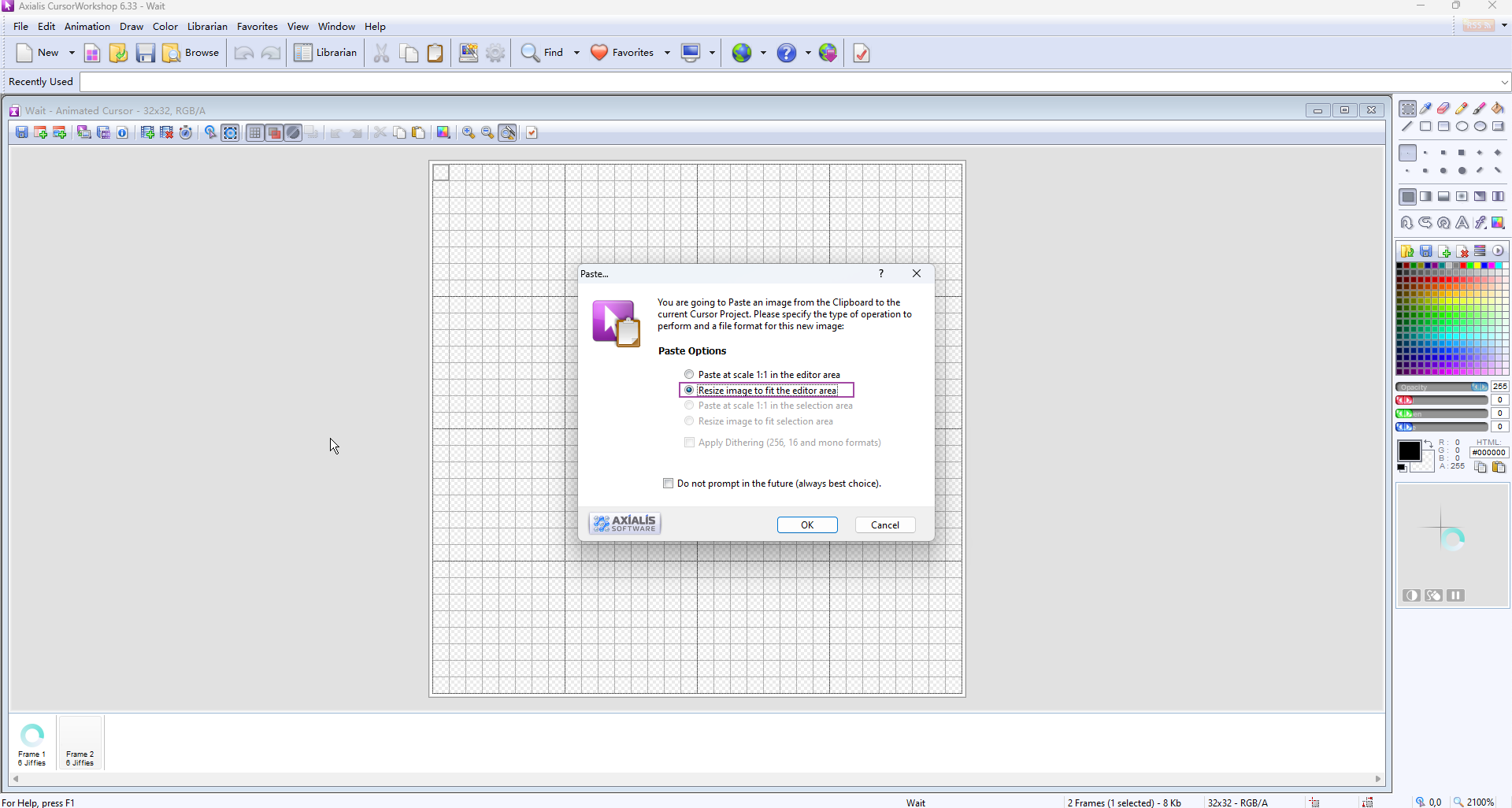
Select
Resize image to fit the editor areato automatically adjust the size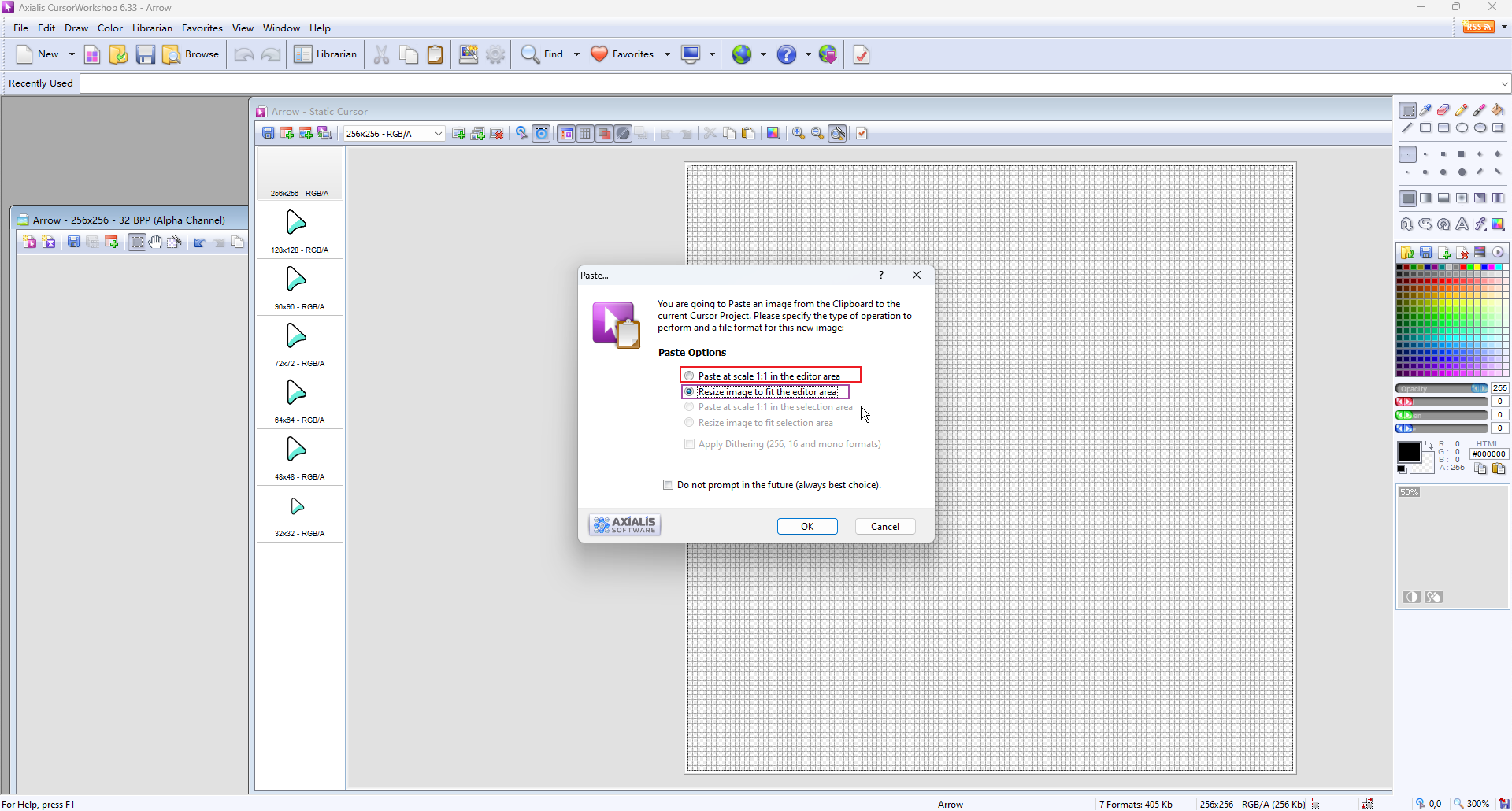
Set 'Hotspot' Set 'hotspots' in sequence
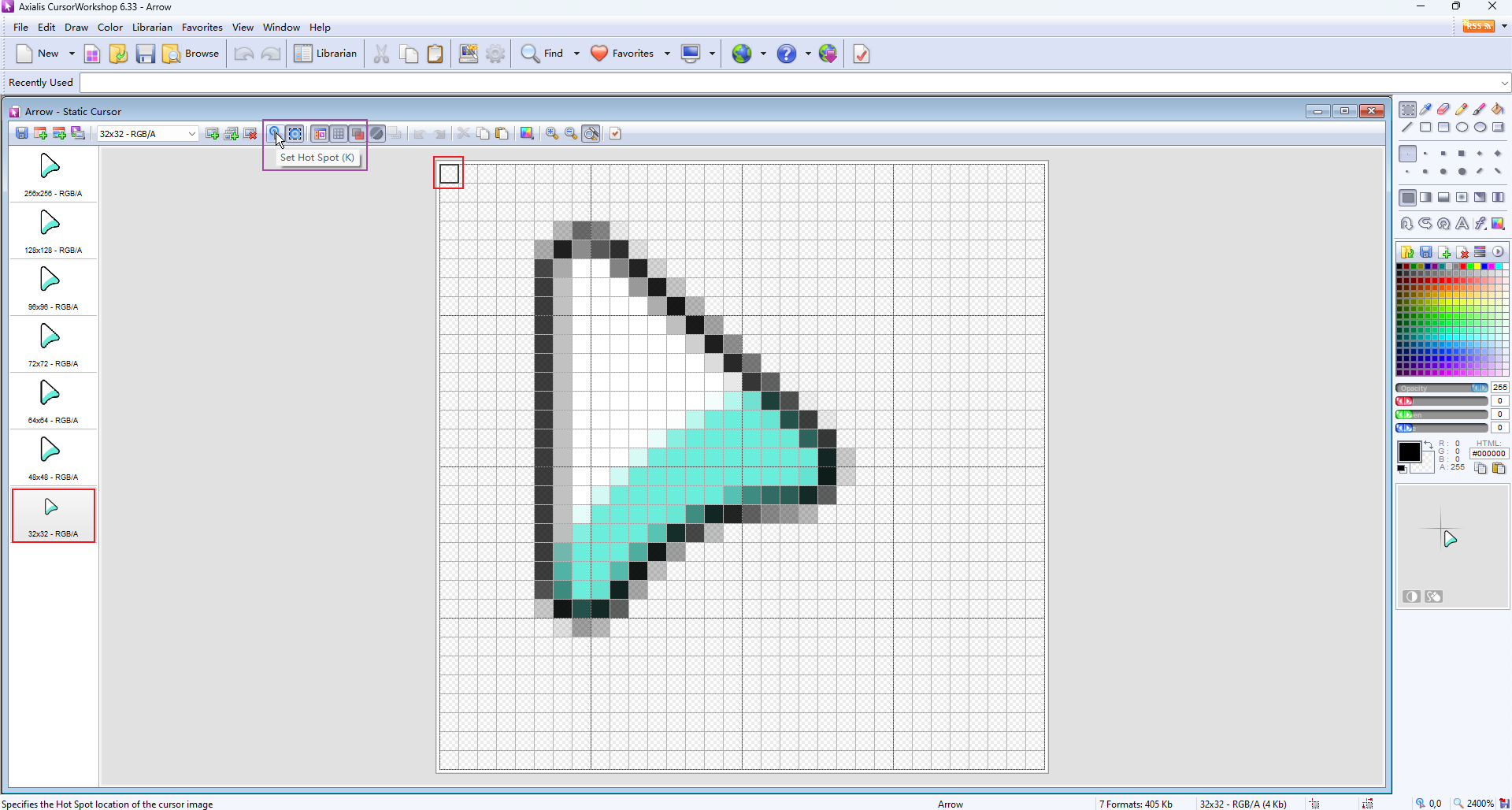
⚠️: Each size requires a "hotspot" to be set, with the default location being "x: 0, y: 0"
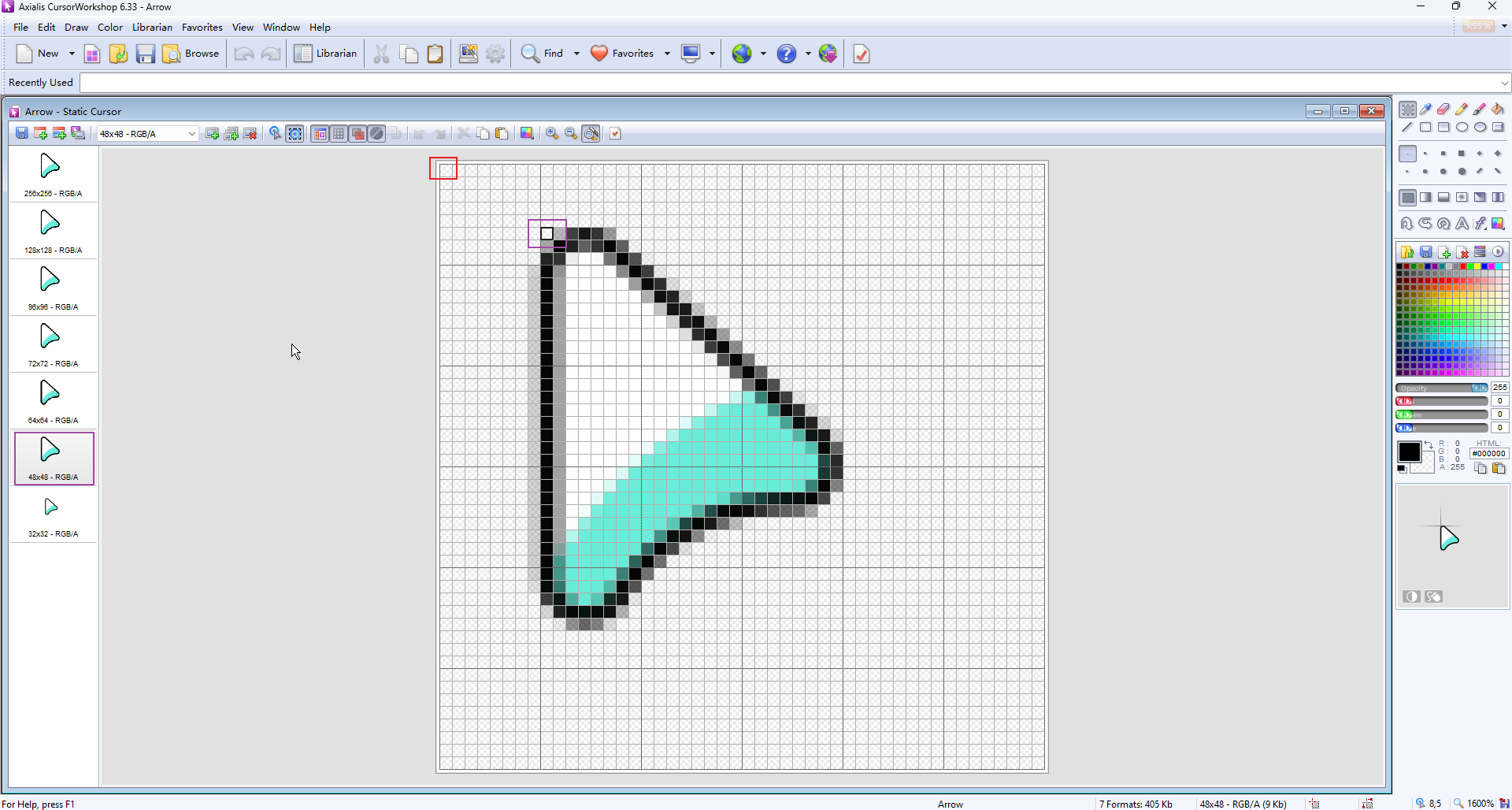
Save
curto local disk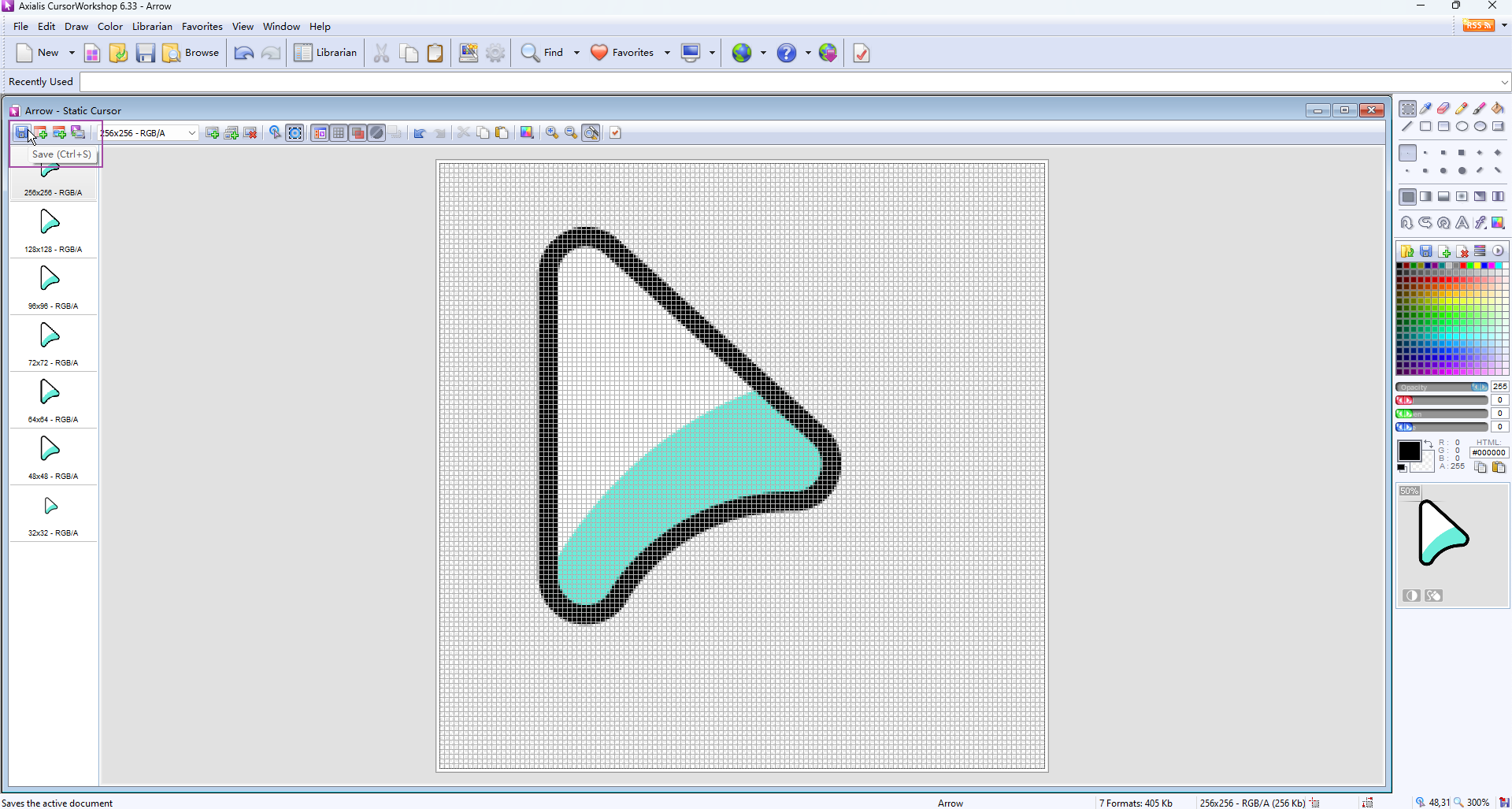
See
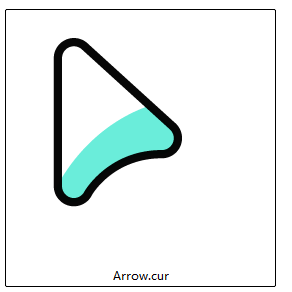
Create a set of dynamic cursor files (in multiple sizes) from images
Prepare every PNG image required by
ani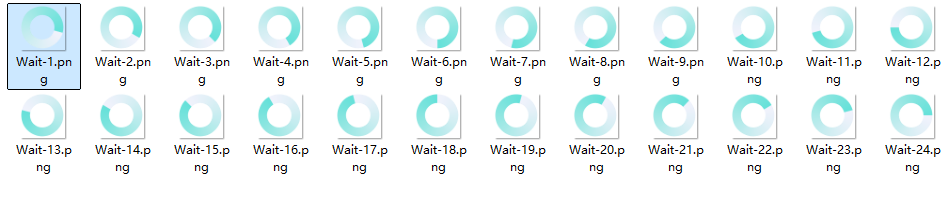
Drag and drop the first frame of the image to the production software
Axialis CursorWorkshop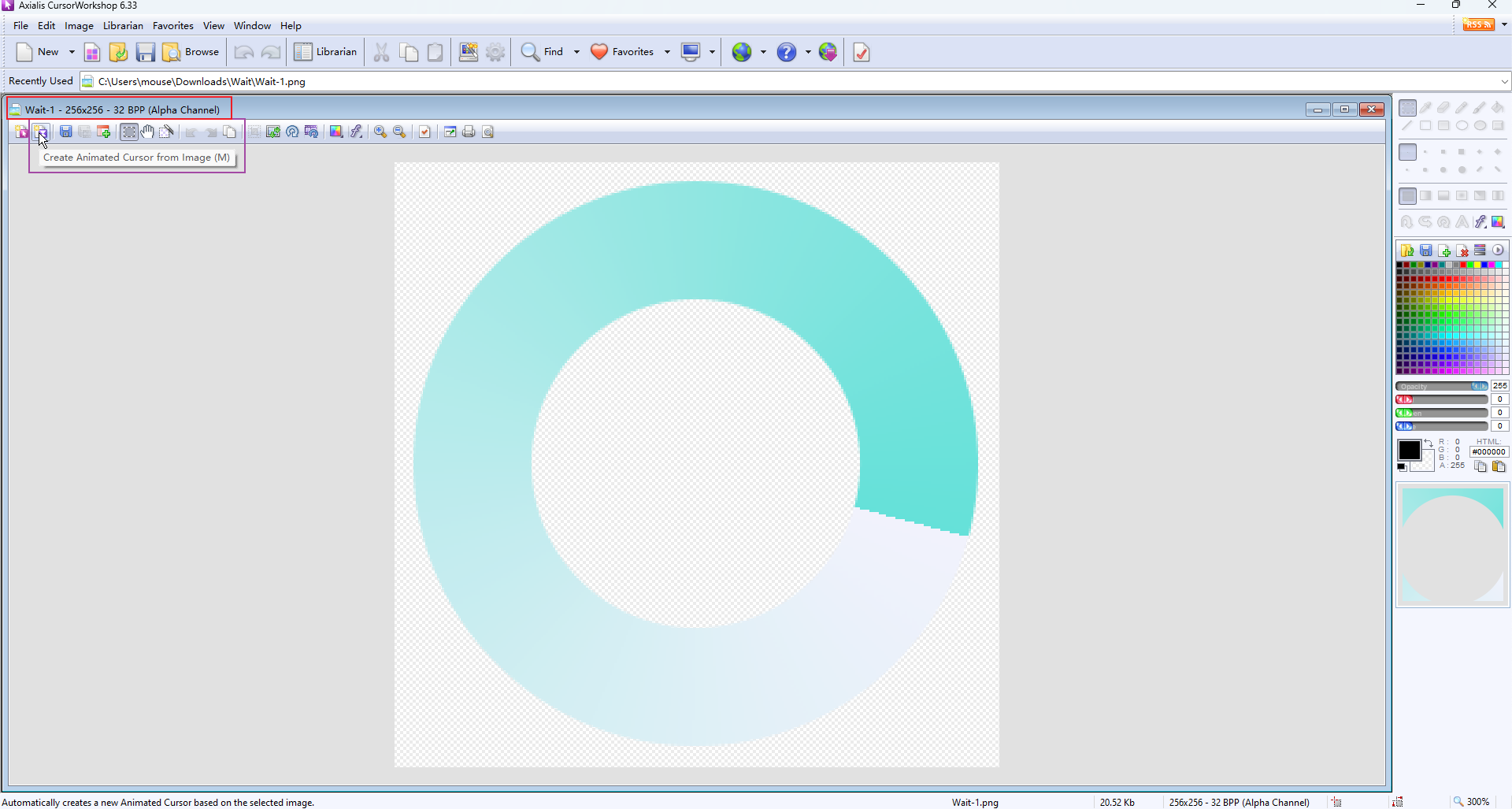
Click the
Create Static cursor from Imagebutton to start creating a static cursor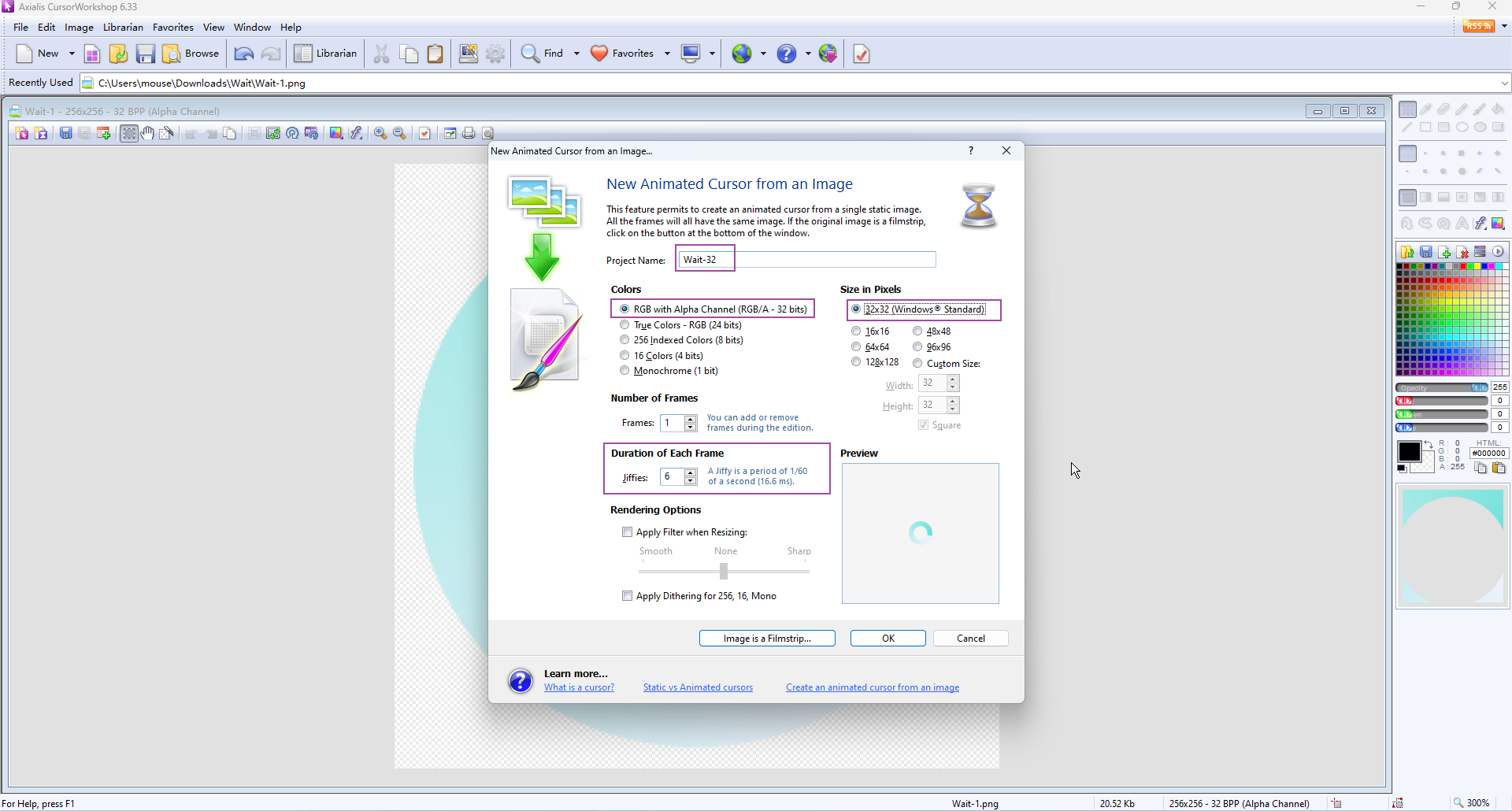
⚠️: Select
RGB/AformatANI files can only contain multiple frame information of one size. To create multiple sizes, it is necessary to remake and select other sizes
Add subsequent frames (blank frames)
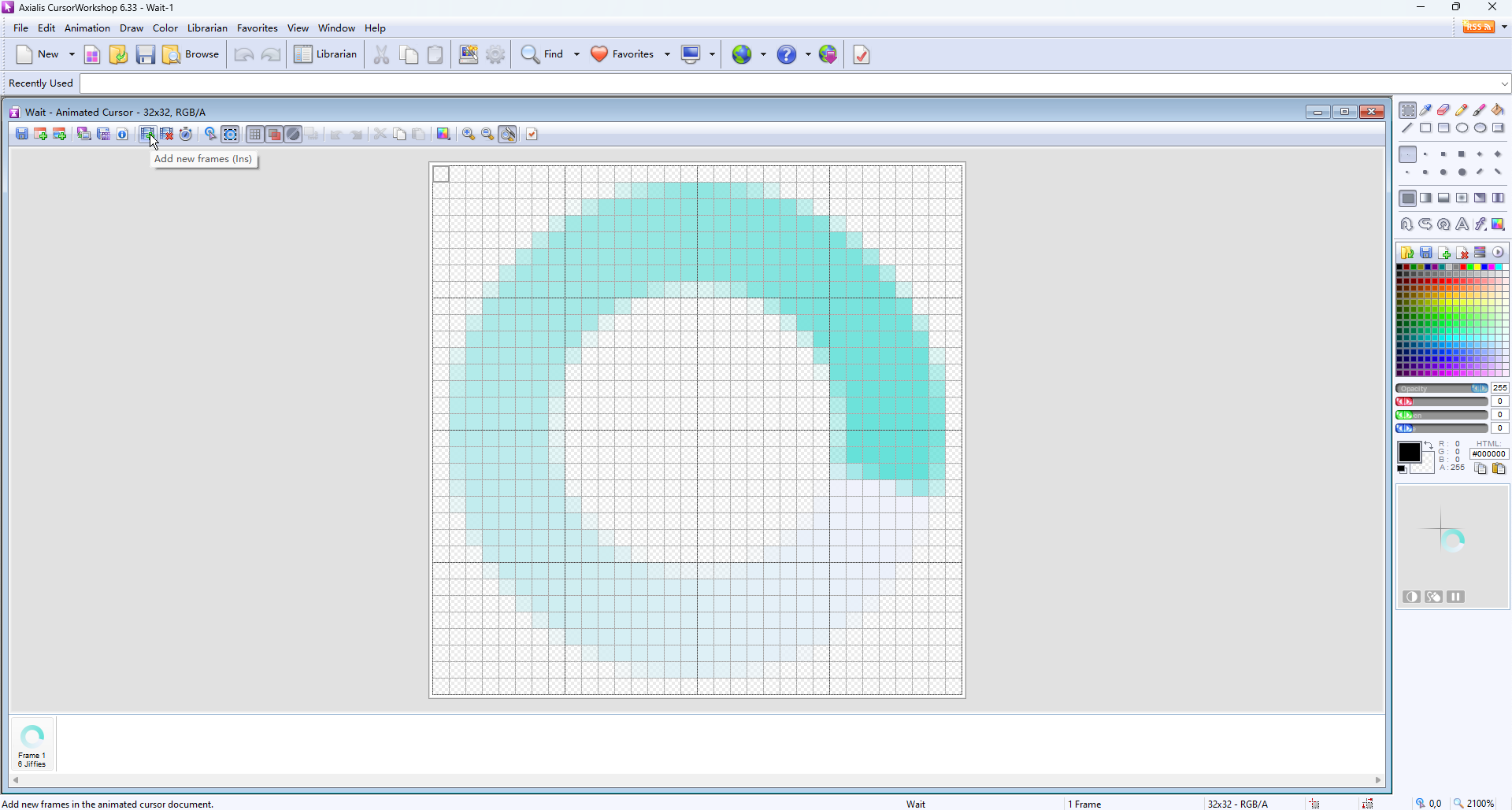
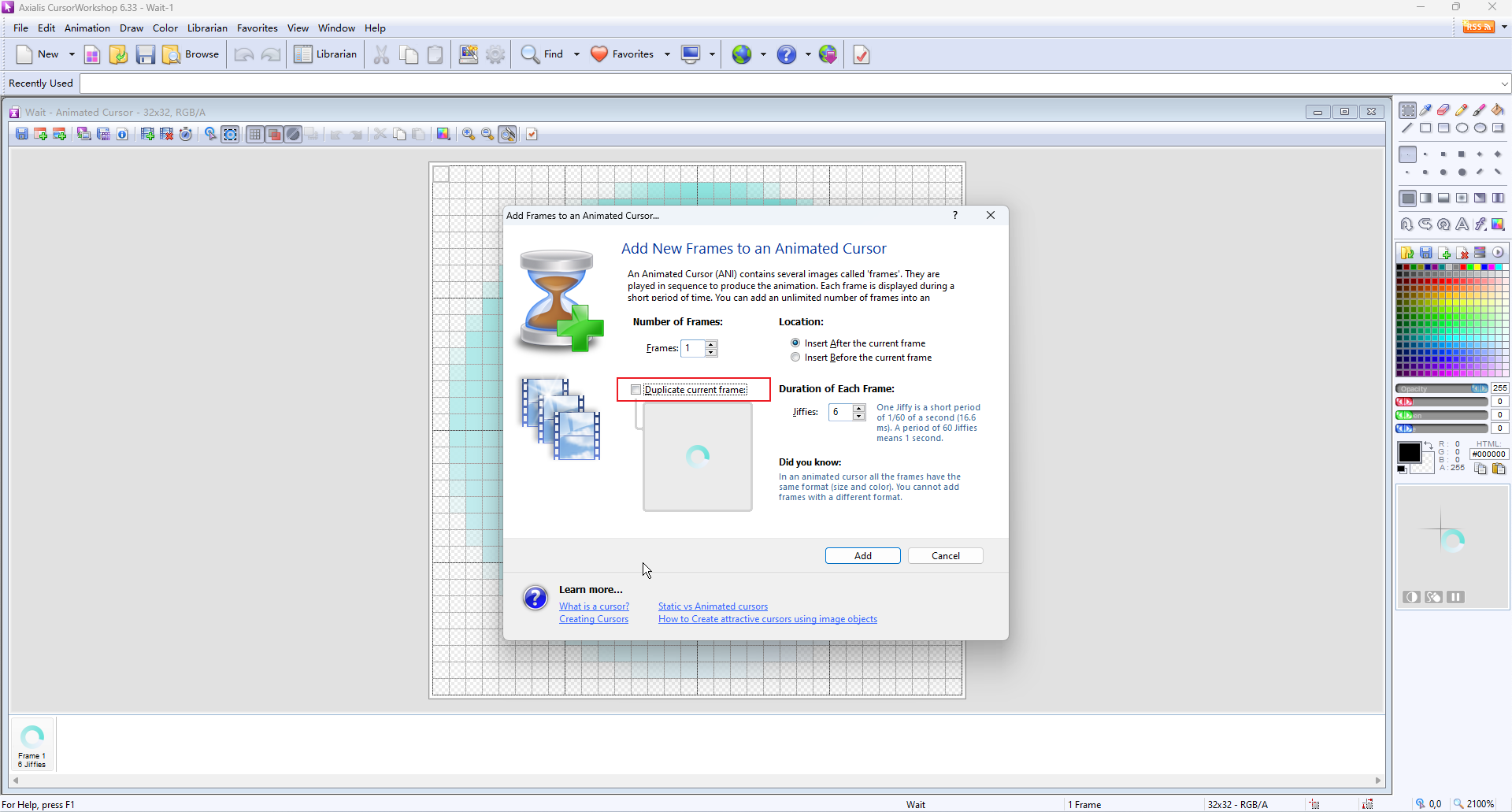
Drag and drop subsequent frames to the production software
Axialis CursorWorkshop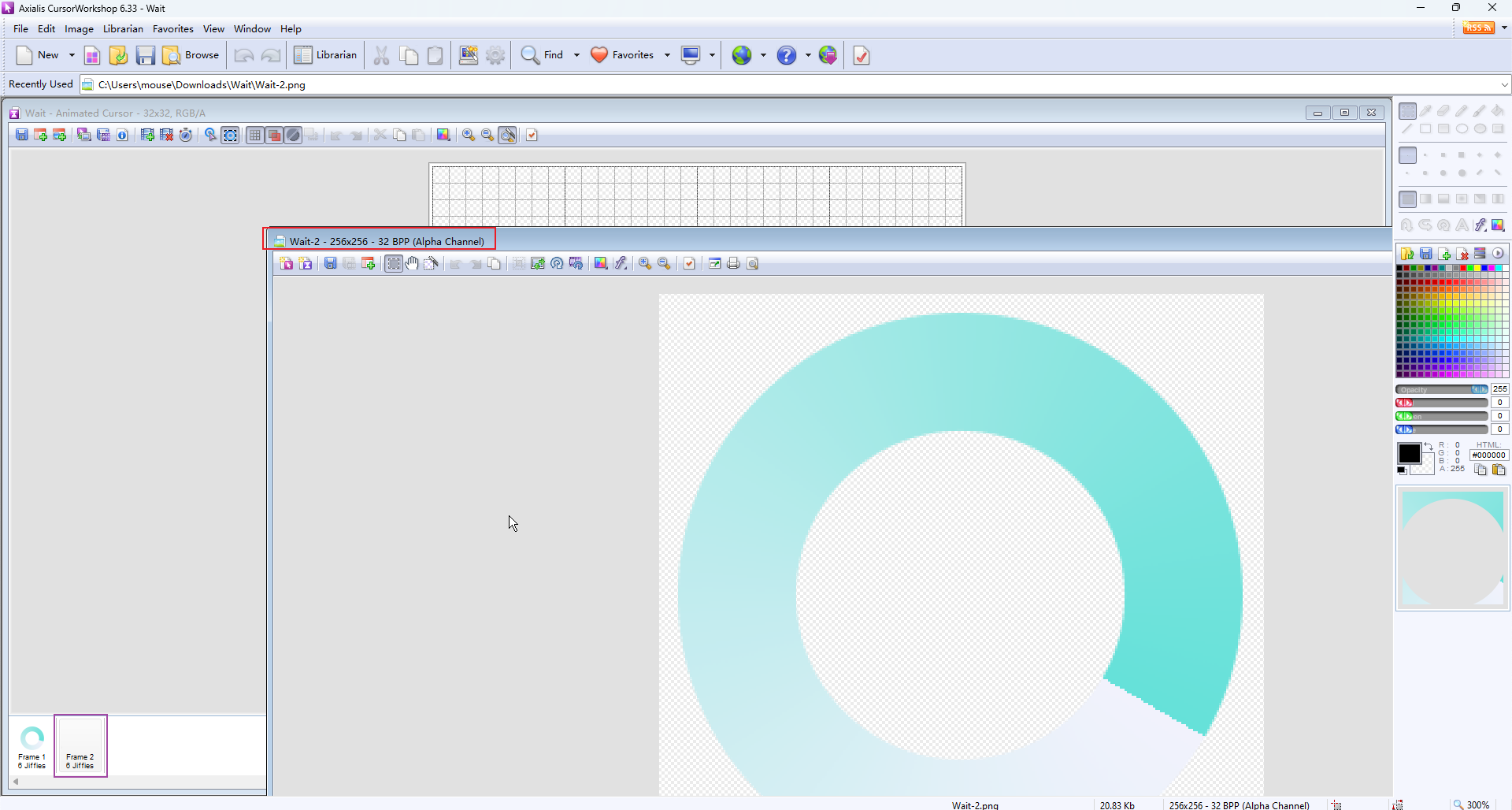
Repeat adding subsequent frames until all are completed

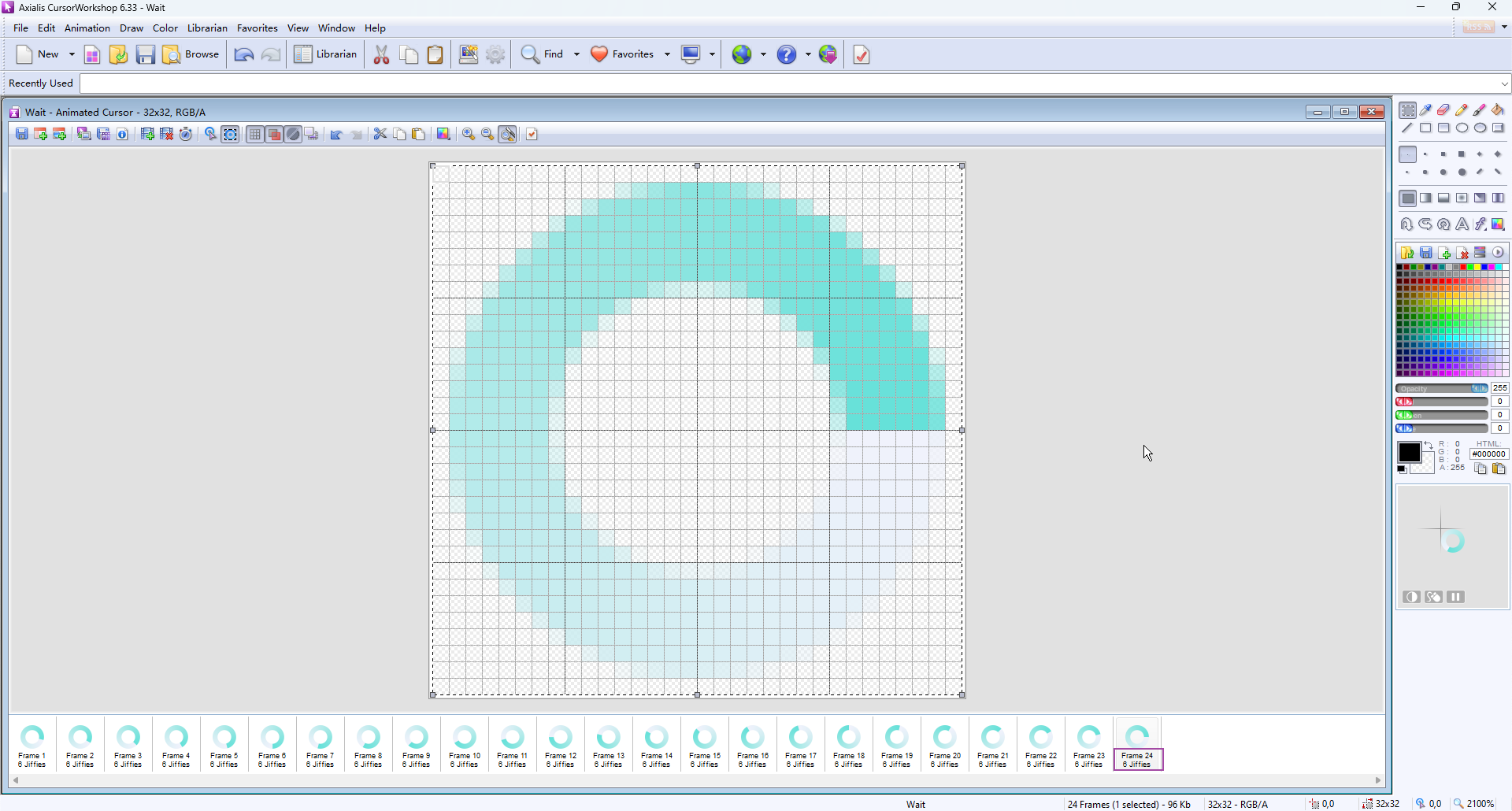
Set 'Hotspot'
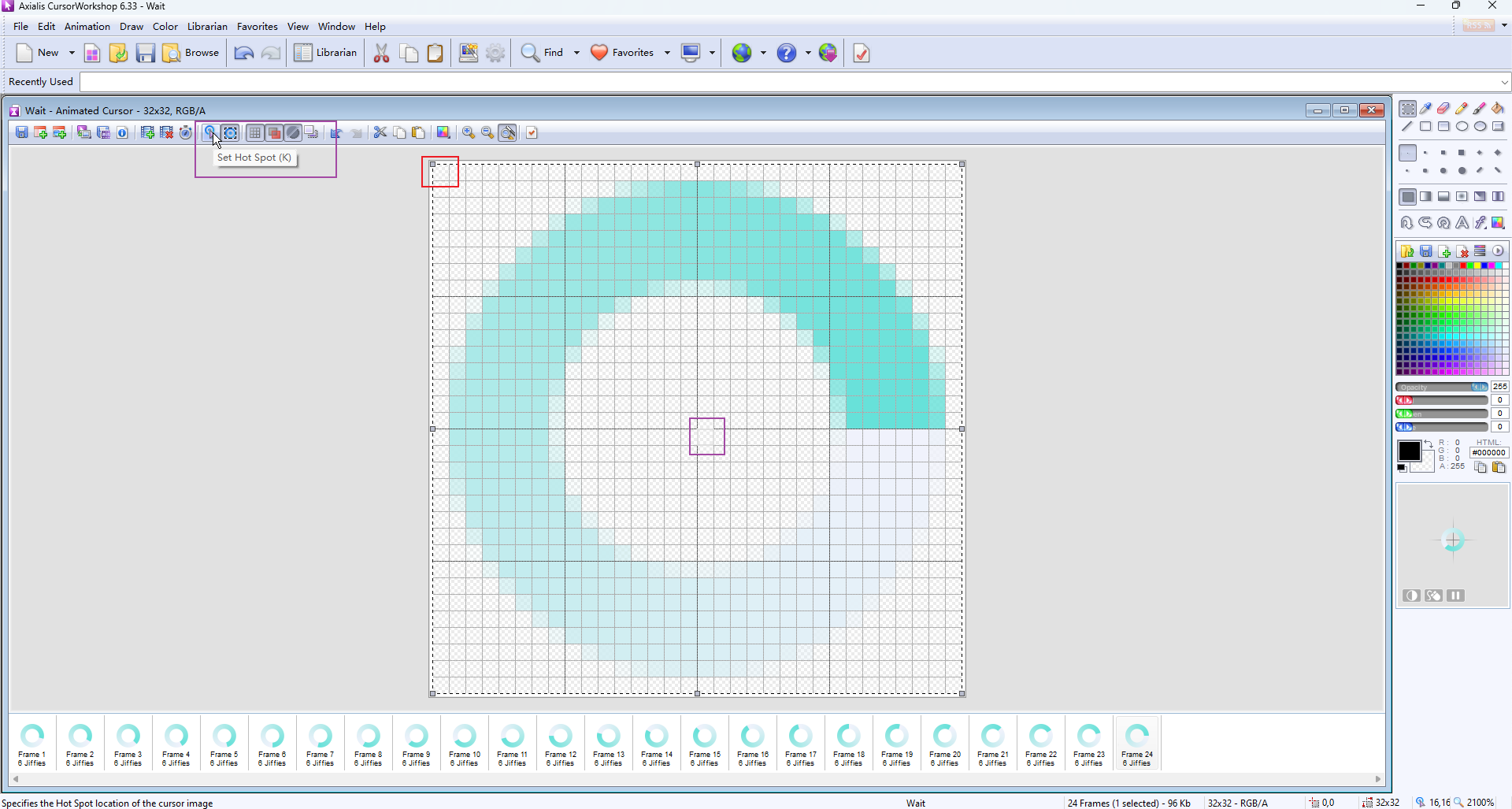
⚠️: You need to complete the production of all frames before setting the "hotspot". If you set the "hotspot" in advance, it will not affect subsequent frames - the "hotspot" position is "x: 0, y: 0"
Save
anito local disk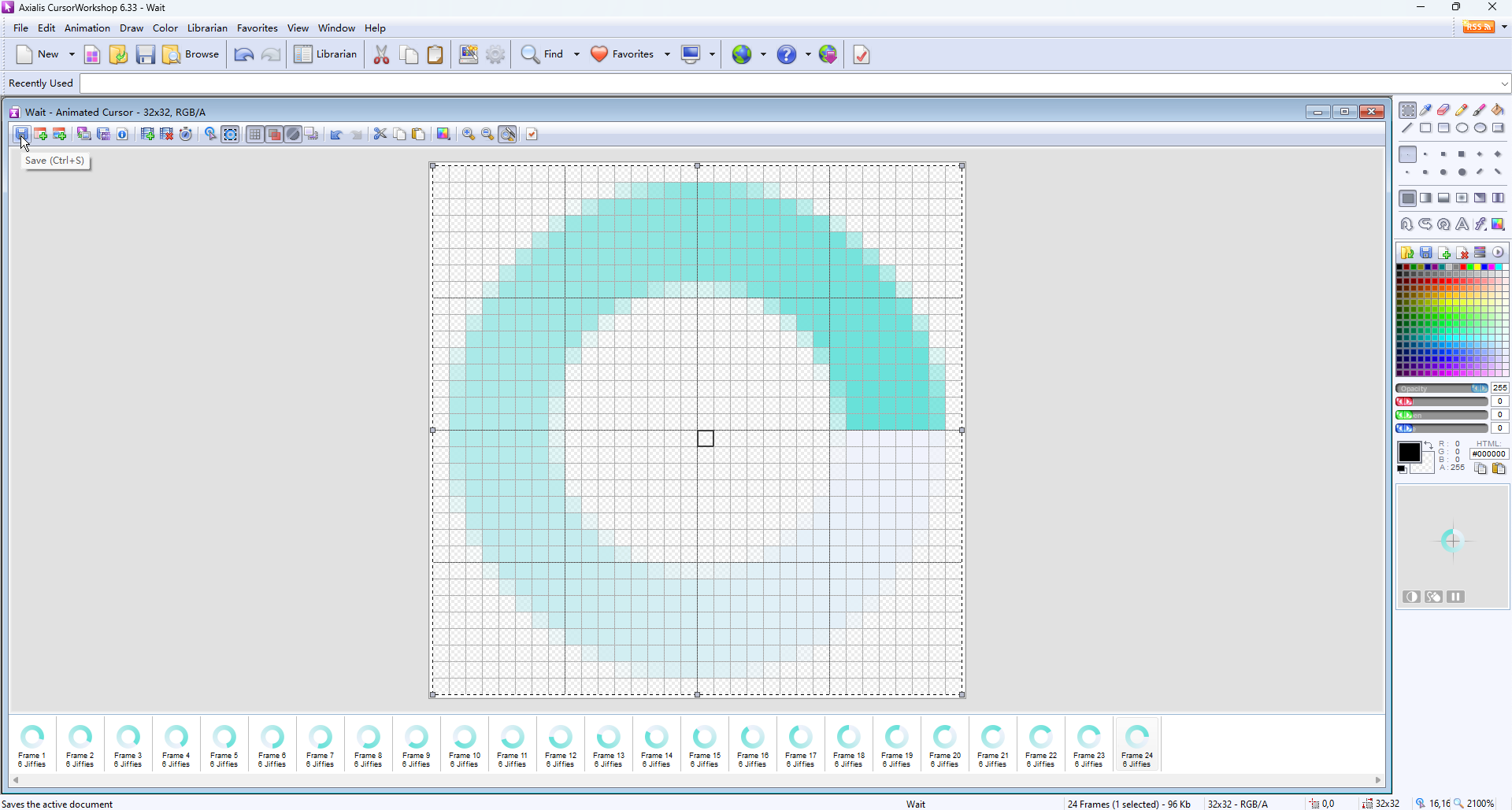
Repeat the above steps until each size is completed
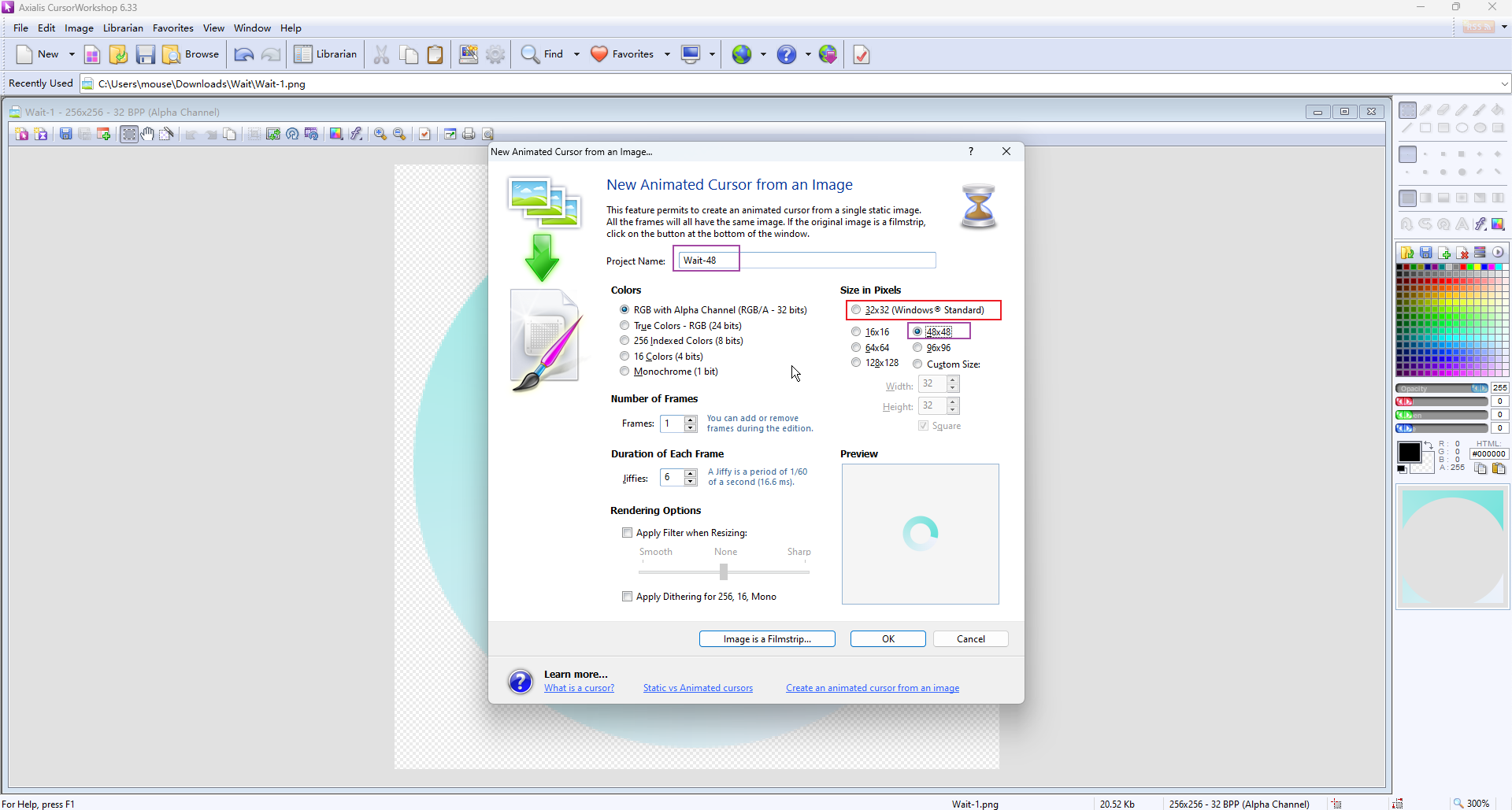
Specific size related instructions: Please check this link
See
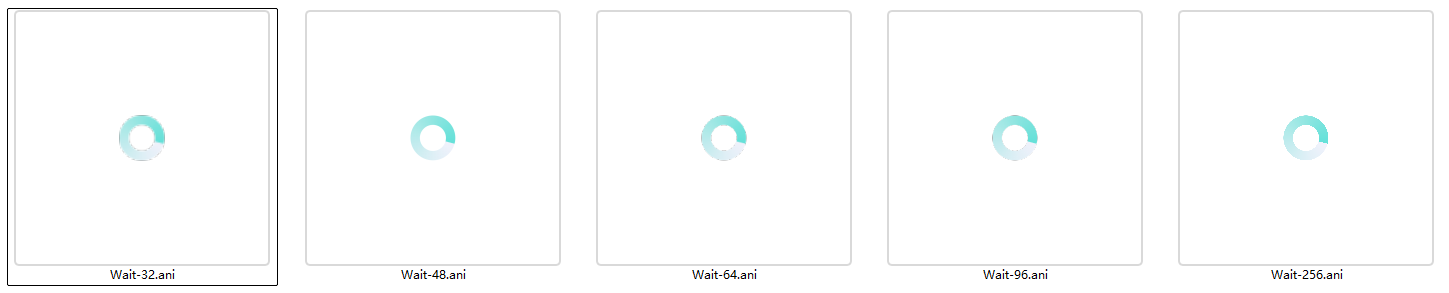
Example